Walkthrough

How Snag Assist AI works

A complete, no‑nonsense walkthrough. Follow these 10 steps and you’ll be running professional inspections on site — without a training session or onboarding call.

1 month free · No card required

1
Step 1

Create your account

Sign up in under a minute. Your 1‑month free trial starts immediately — no card required.

  • Sign up with email or Google.
  • Verify your email address from your inbox.
  • You land straight in your dashboard.
Tip

Use a work email so colleagues can be added to the same workspace later.
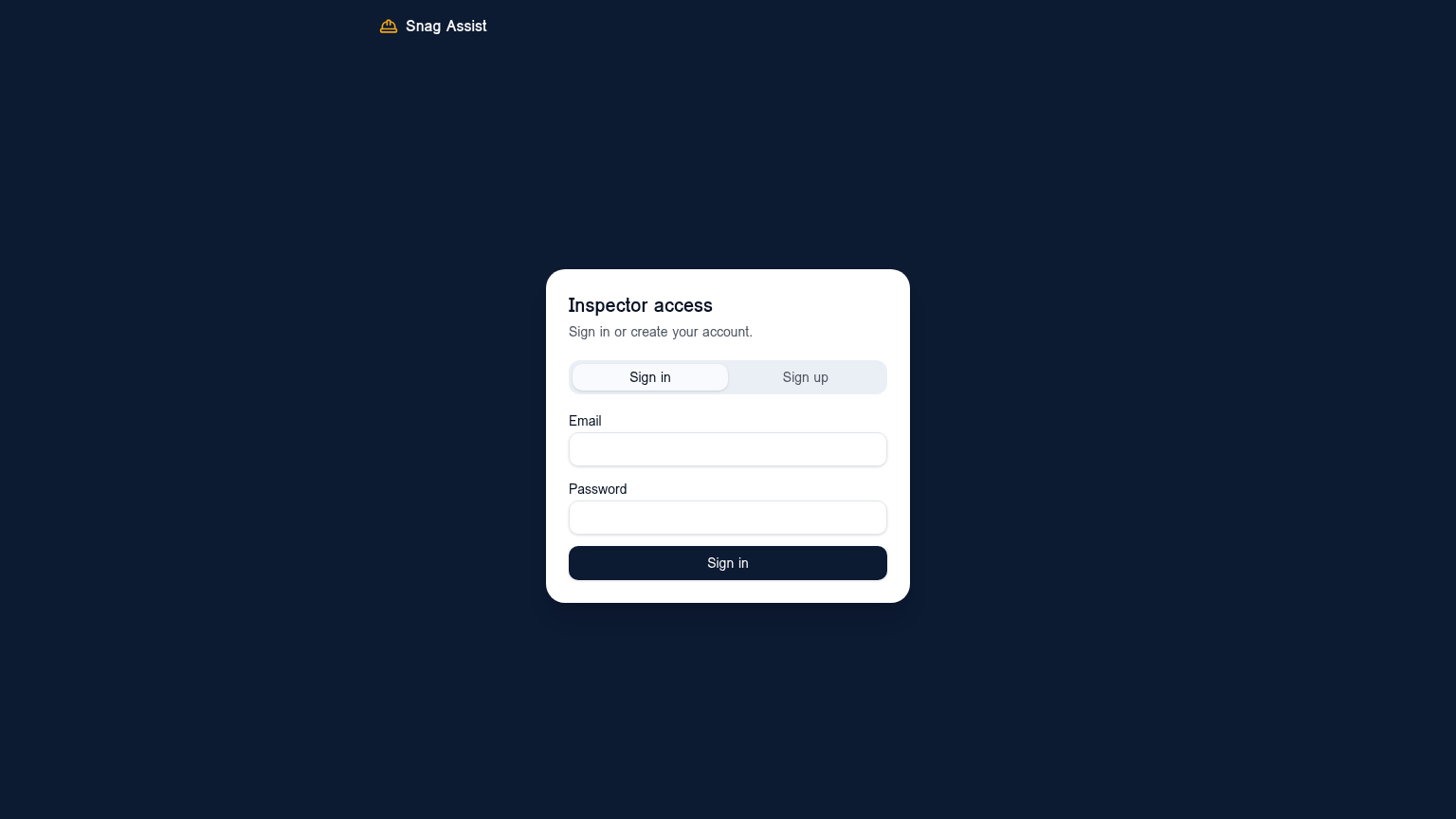
Sign-up screen
Sign up takes less than a minute
2
Step 2

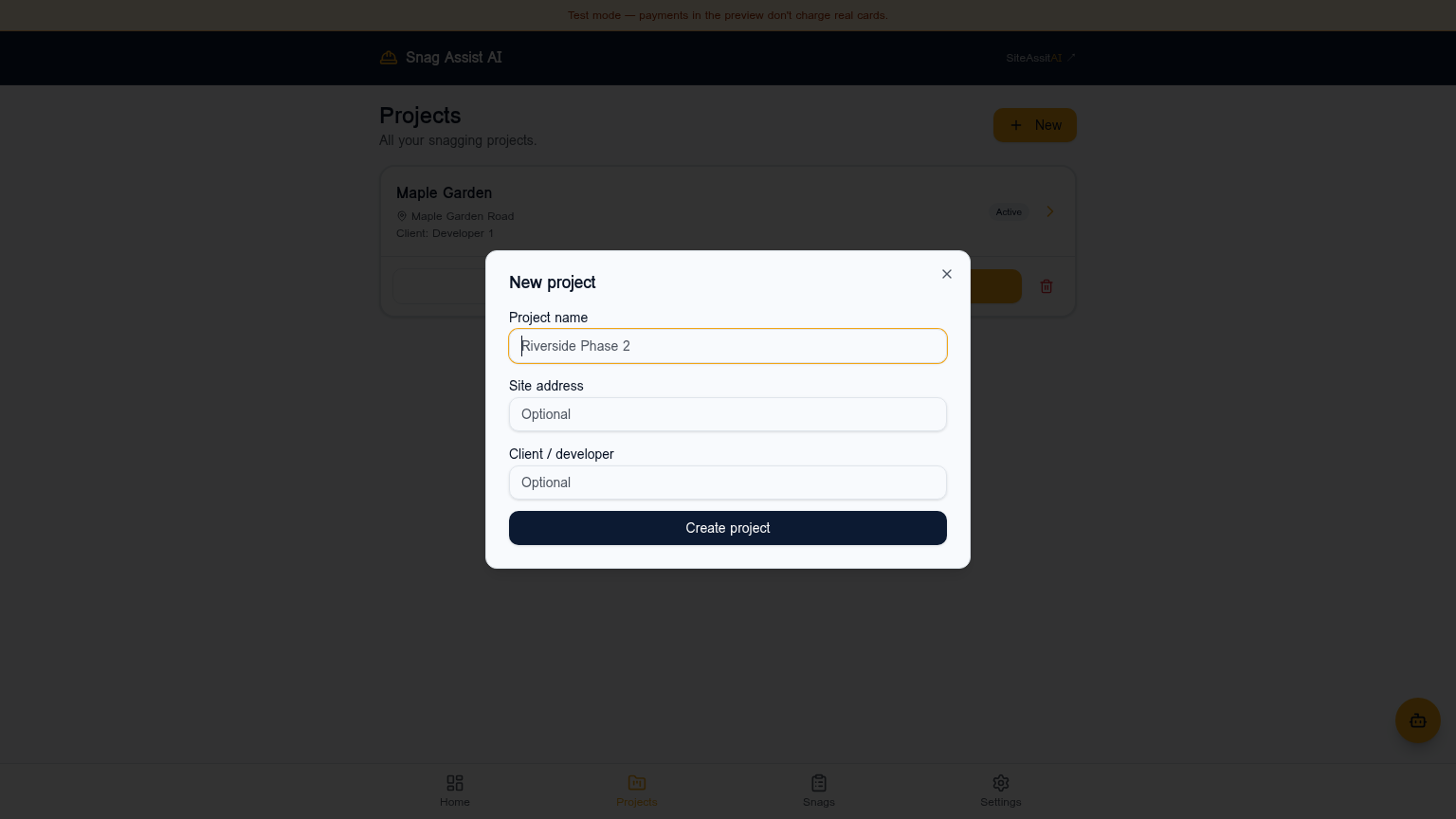
Create your first project

A project usually represents a development, site or building. Everything else lives inside a project.

  • Tap “New project” on the dashboard.
  • Give it a name (e.g. ‘Maple Gardens Phase 2’).
  • Add an address or reference if you need it for reports.
Create project dialog
Projects keep each development separated
3
Step 3

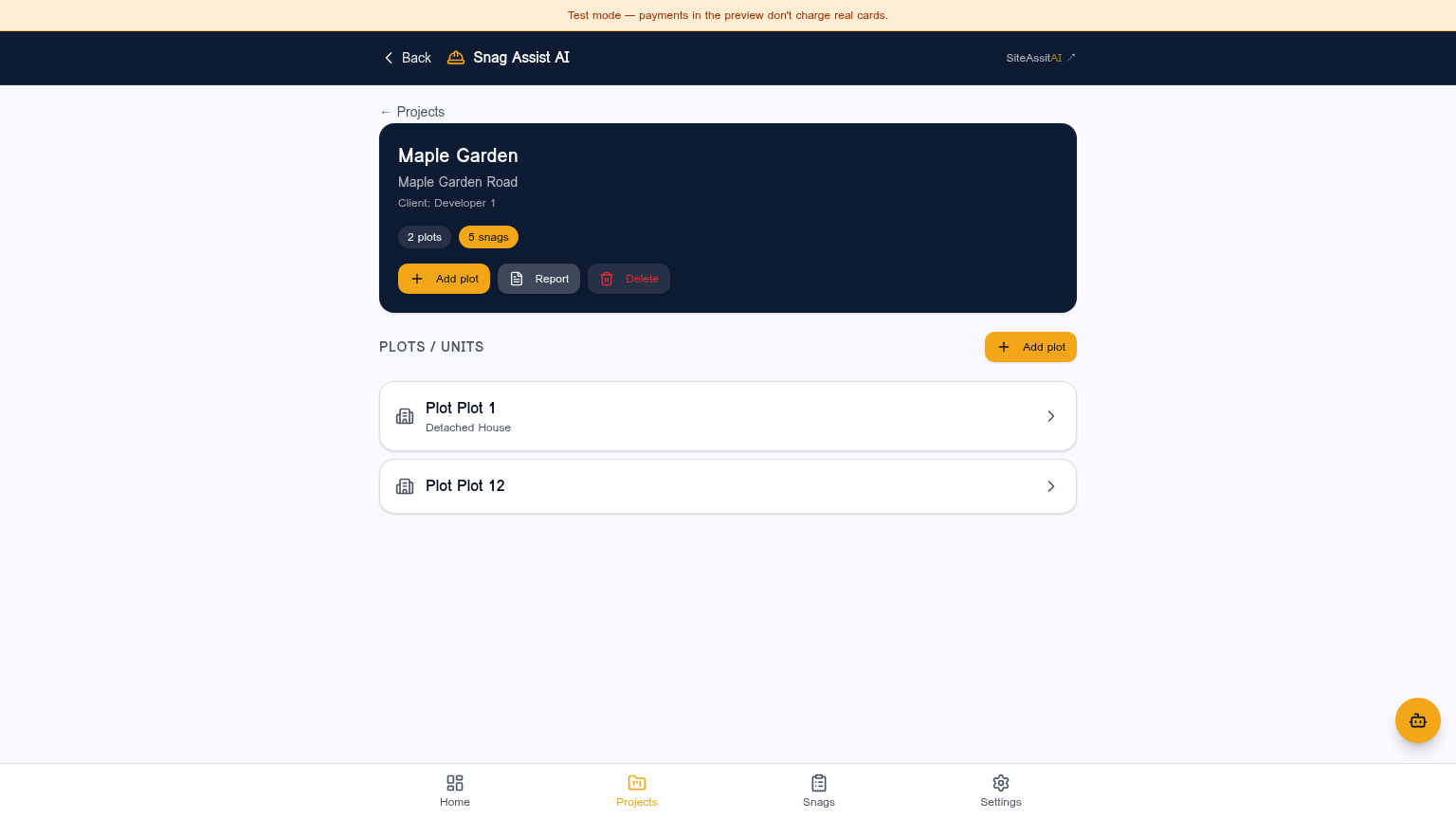
Add plots, units or properties

Inside a project, add the plots, units or houses you need to inspect. You can add them one by one or in bulk.

  • Open your project and tap “Add plot”.
  • Name each plot (Plot 1, Apartment 4B, etc.).
  • Add as many as you like — there’s no limit.
Plot list inside a project
Each plot shows its own snag totals
4
Step 4

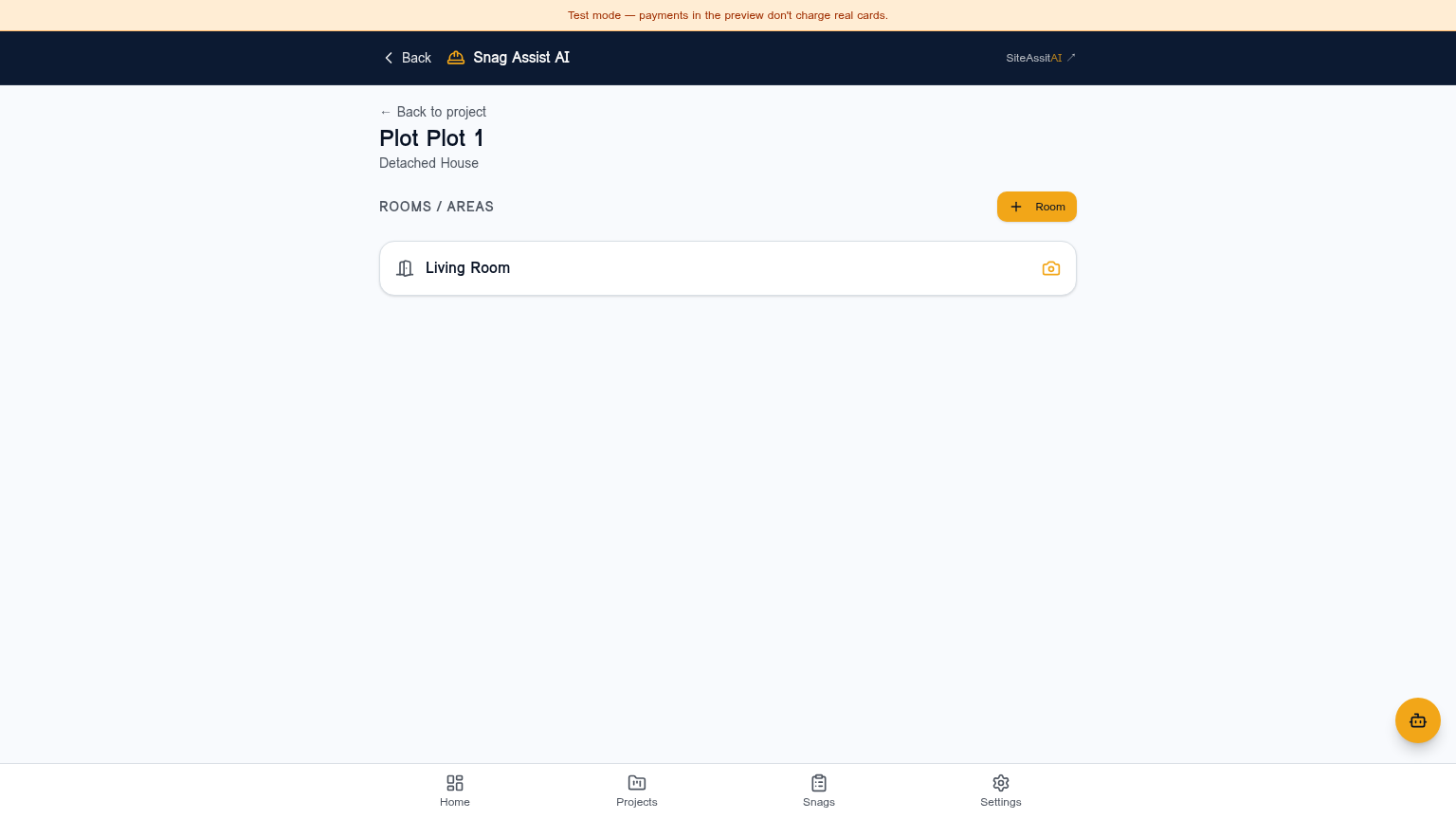
Add rooms inside each plot

Rooms are where snags live. Add the rooms you want to inspect — kitchen, ensuite, hallway and so on.

  • Open a plot and tap “Add room”.
  • Pick from common room types or type your own.
  • Snags are numbered continuously per room, so the AI annotations always match the list.
Tip

You don’t need to add every room up front — add them as you go.

Room list inside a plot
Rooms drive the inspection flow
5
Step 5

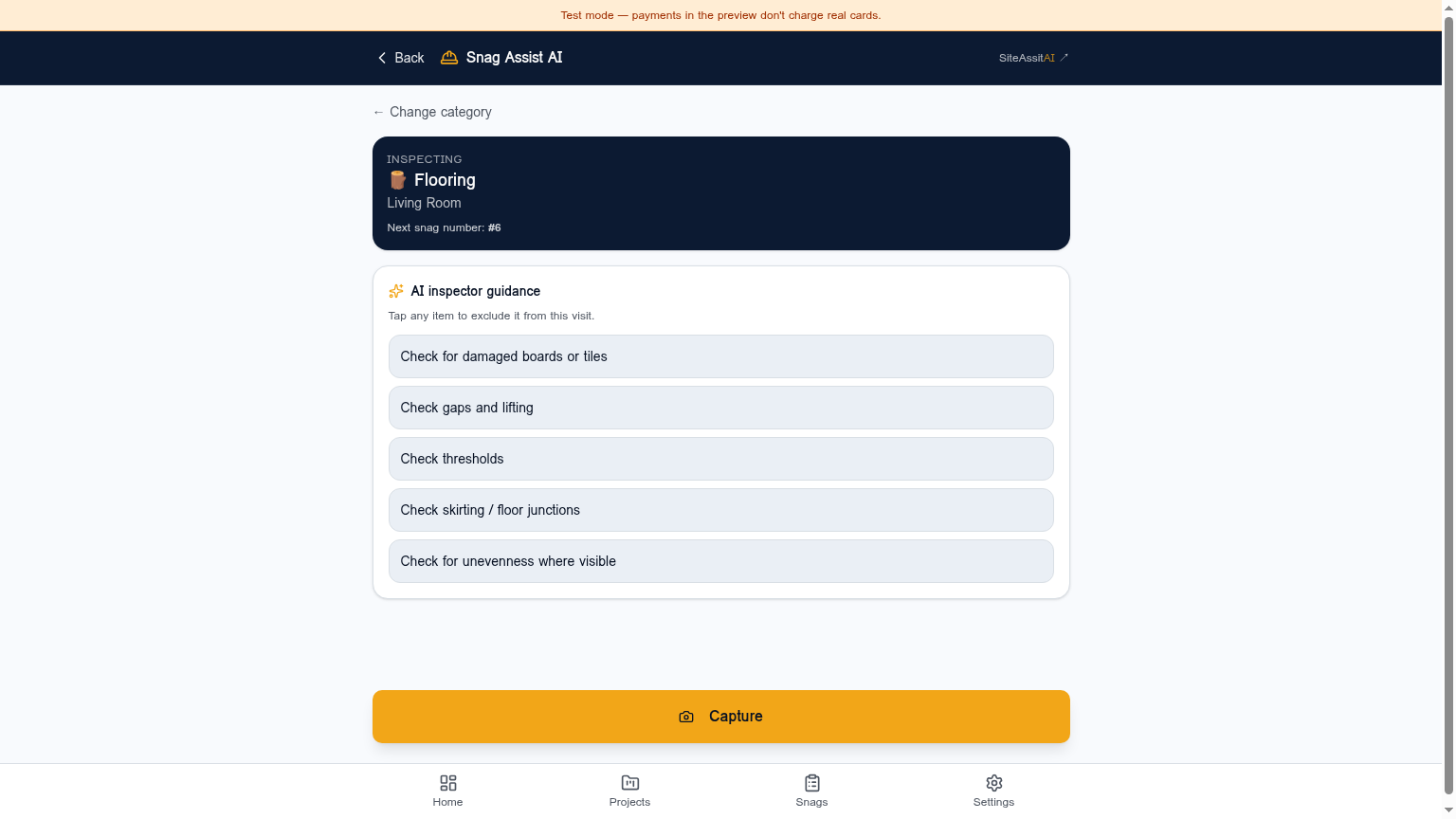
Start an inspection

Open a room and tap “Inspect”. This is where Snag Assist AI does the heavy lifting.

  • Take a photo of the defect using your phone.
  • Pick a category (paintwork, plastering, joinery, M&E…).
  • Add a quick note if needed — or leave it to the AI.
Camera capture in inspection mode
Capture in seconds, on site
6
Step 6

Let the AI write the snag for you

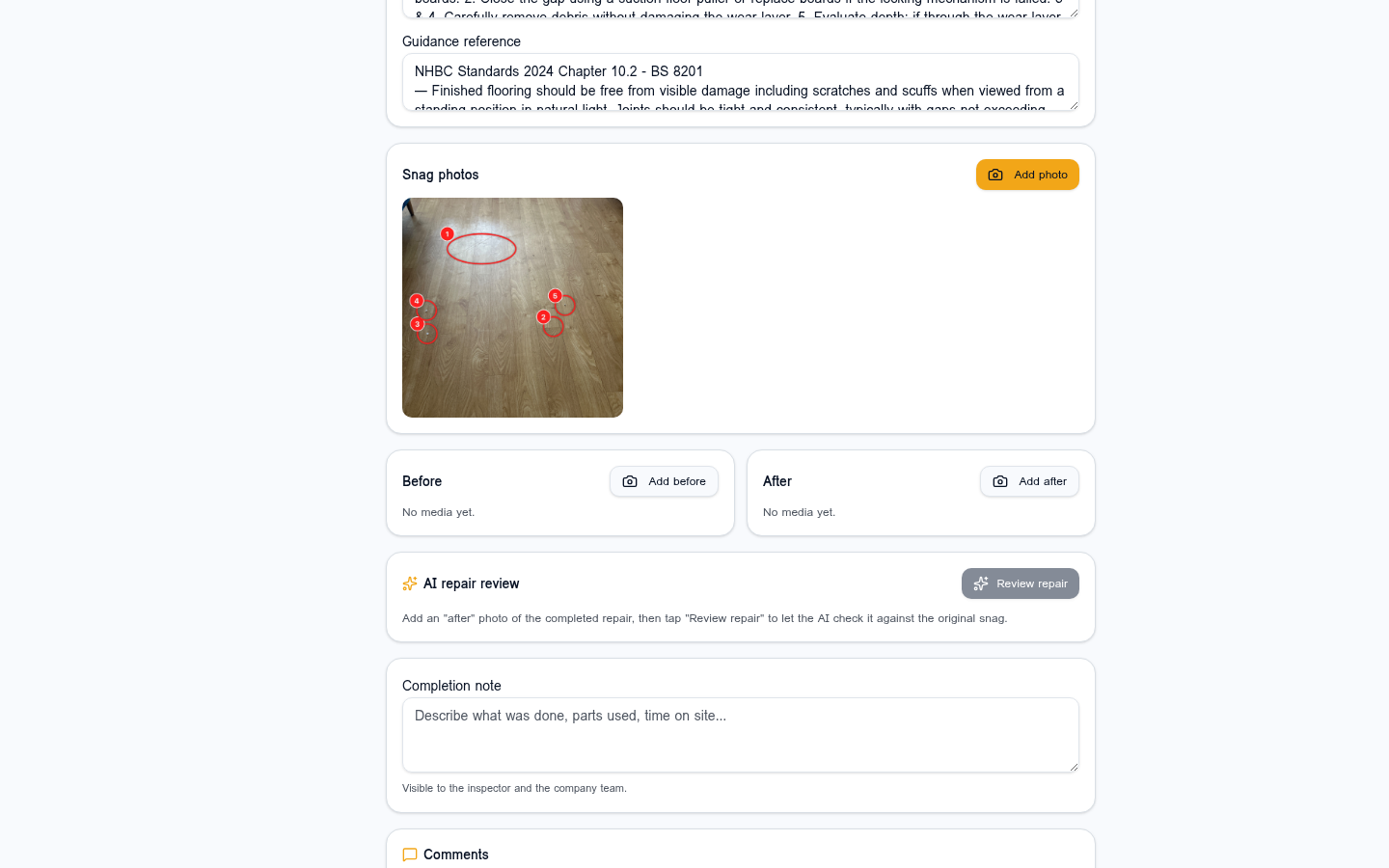
Snag Assist AI analyses each photo and produces a full, professional snag entry automatically.

  • Title and description written from the photo.
  • Recommended action and trade automatically suggested.
  • Industry guidance reference included where relevant.
  • Photo annotated with a red circle and number that matches the snag list.
Tip

Tap “Add more” to keep capturing in the same room, or “Complete” when you’re done.

AI annotated snag preview
AI annotates the photo and writes the snag
7
Step 7

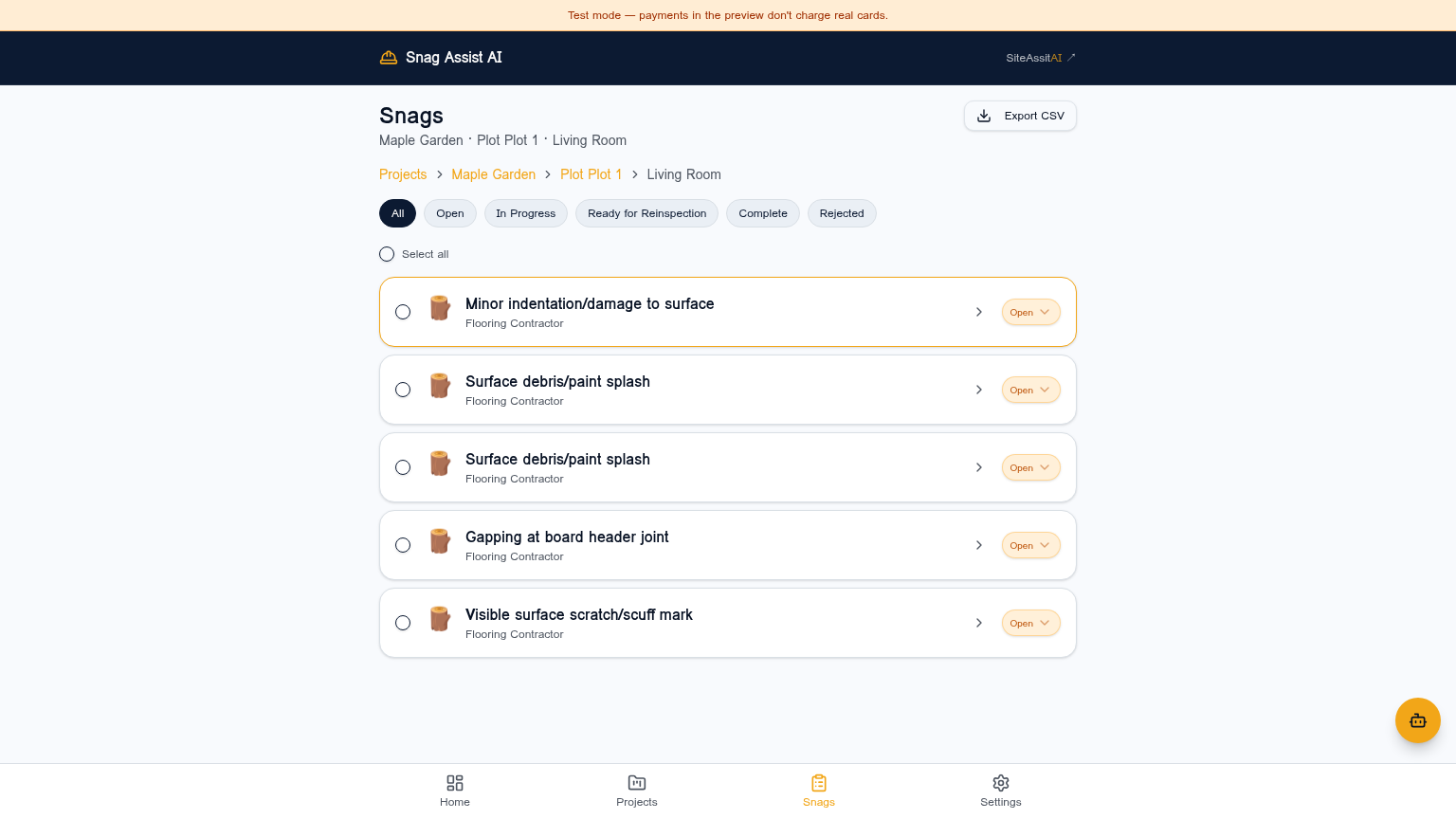
Browse and filter your snags

The Snags page lets you drill from project to plot to room — with totals at every level.

  • See total snags per project, plot and room.
  • Filter by status, trade or category.
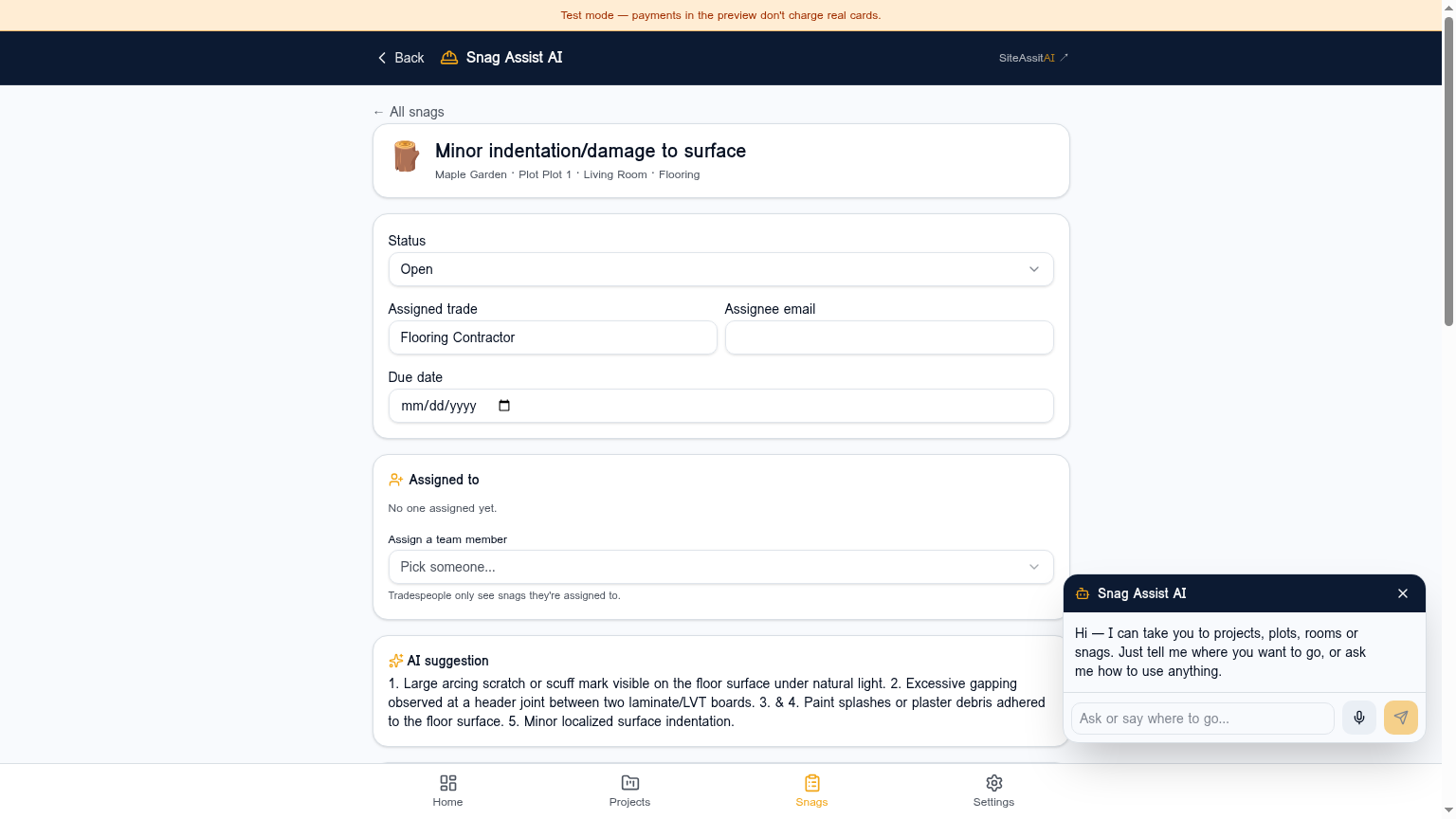
  • Open a snag for the full detail, photo and guidance.
Snag browser with filters
Drill down from project to room
8
Step 8

Assign snags to tradespeople

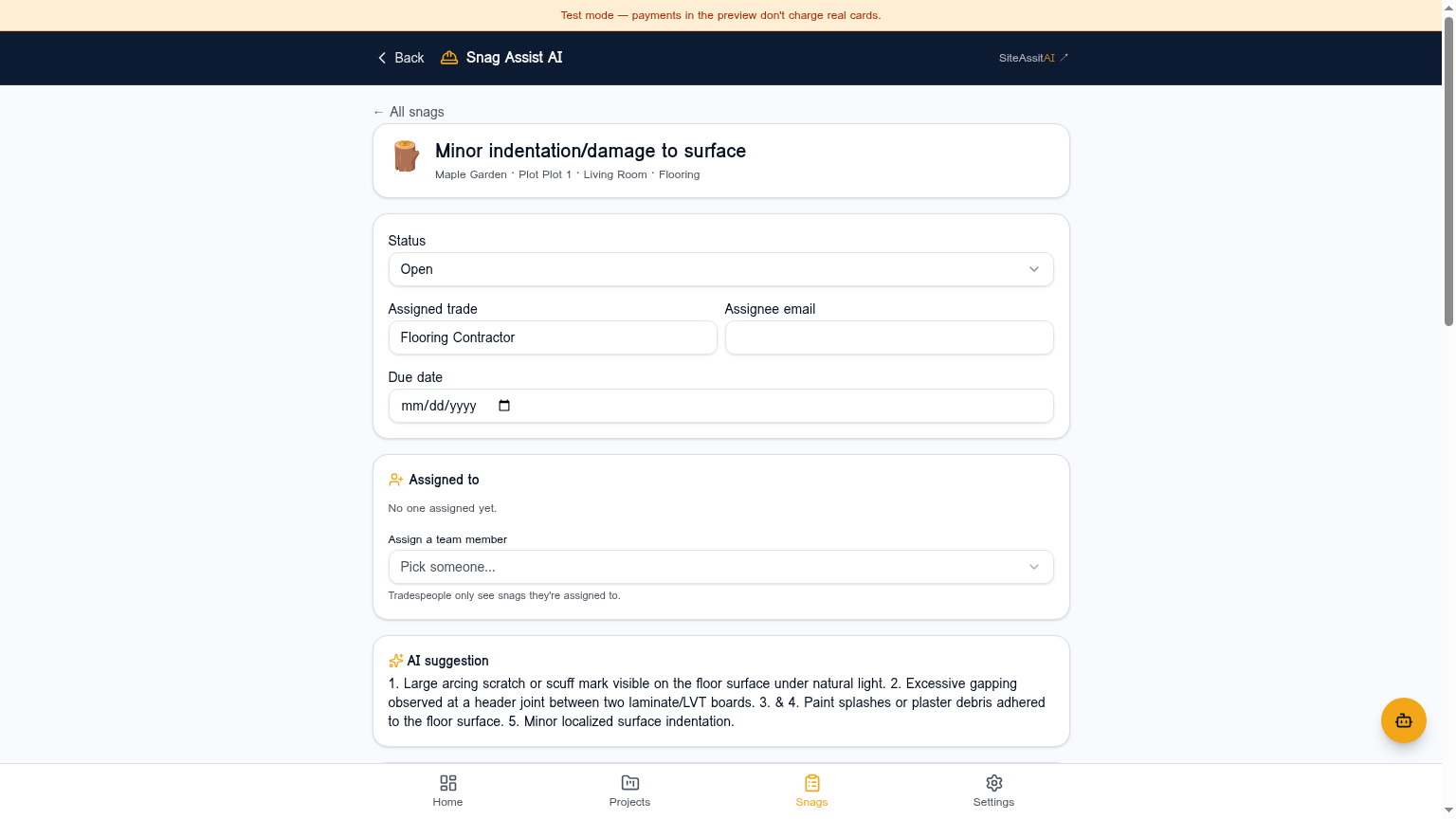
Send the right snags to the right people. Tradespeople only see the snags assigned to them.

  • Add tradespeople to your workspace.
  • Assign snags individually or by trade in bulk.
  • They mark items as complete from their own ‘My Work’ view.
Assigning a snag to a trade
Each trade only sees what they need
9
Step 9

Generate professional reports

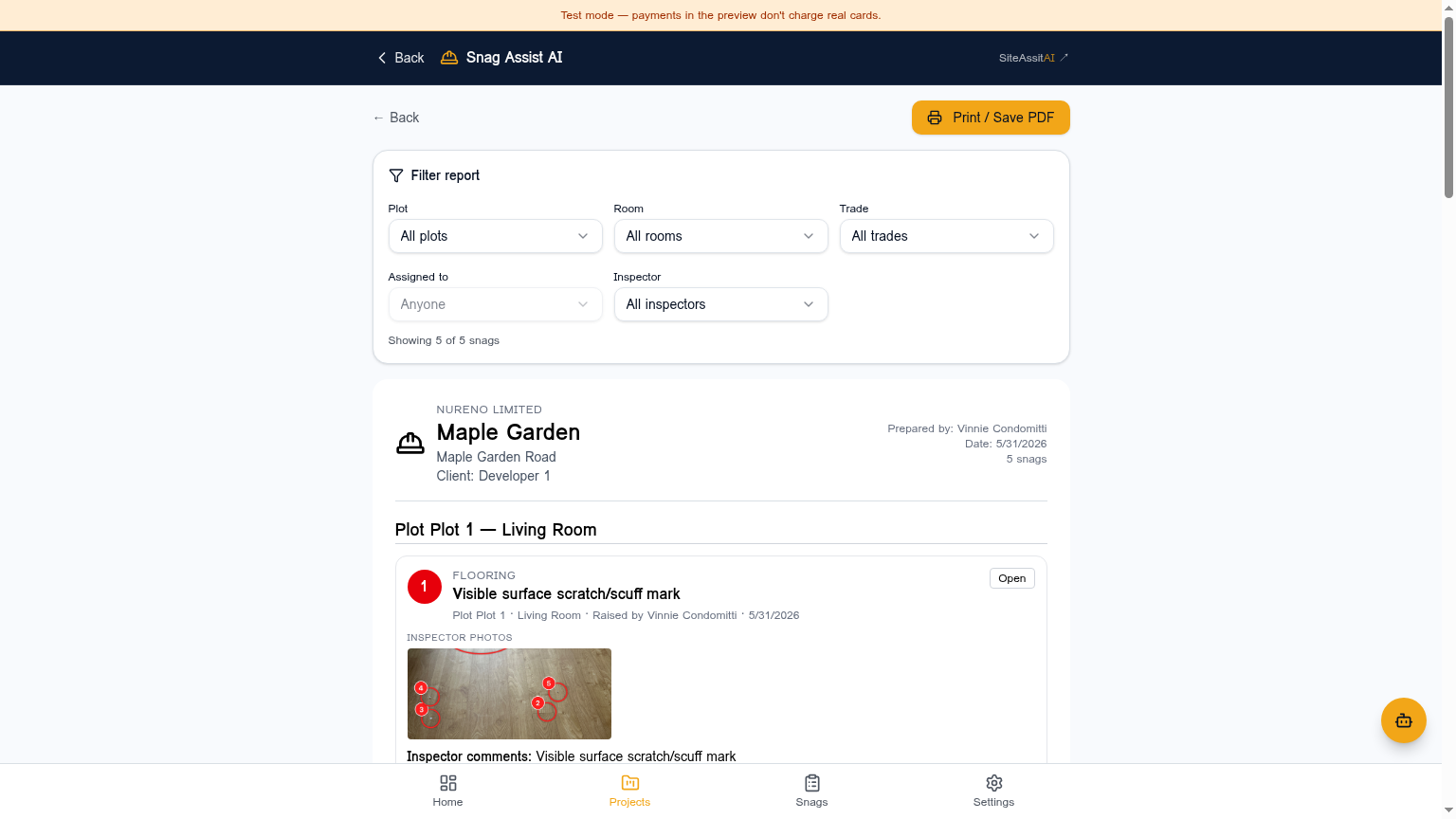
One tap turns your inspection into a clean, branded PDF you can send to clients, contractors or sign‑off teams.

  • Choose project, plot or room scope.
  • Add your company logo for branded reports (Pro plan and above).
  • Download as PDF or share a link.
PDF report preview
Reports that look like you spent hours on them
10
Step 10

Use the AI assistant anywhere

The assistant lives in the bottom‑right of the screen. Ask it questions or tell it where to take you.

  • “Show me snags in Maple Gardens, plot 2, kitchen.” — it takes you there.
  • “How do I assign a snag to a trade?” — it explains.
  • Hold the mic to talk, or type — whichever is faster on site.
AI assistant chat panel
Navigate and troubleshoot by voice or text

Frequently asked

Do I need to install anything?

No. Snag Assist AI runs in your phone or laptop browser. Open the site, log in and you’re in.

Does it work offline?

You can capture photos and notes with limited connection — they sync the moment you’re back online.

Can my team use it too?

Yes. Invite colleagues to your workspace and assign roles. Tradespeople only see snags assigned to them.

How accurate is the AI?

Very — but you’re always in control. You can edit any AI‑generated title, description, action or trade before saving.

What does it cost?

Every account gets a full month free. After that, pick from Starter, Pro, Business or Enterprise on our pricing page.

Is my data safe?

Yes. Projects are isolated to your workspace and protected by role‑based access at every level.

Ready to try it on your next inspection?

Set up your first project in under five minutes. You don’t need a card, and you can cancel any time during your free month.